Dexcom G7 and ONE+
Fundamental in advance
Noteworthy is the fact that the G7 and ONE+ systems, compared to the G6, do not smooth the values, neither in the app, nor in the reader. More details about this here.
Picture is outdated!!!
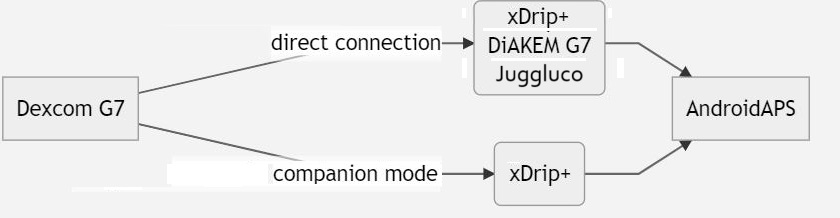
1. xDrip+ (direct connection to G7 or ONE+)
Follow the instructions here: xDrip+ G7
Select xDrip+ in ConfigBuilder, BG Source.
Adjust the xDrip+ settings according to the explanations on the xDrip+ settings page xDrip+ settings
2. Patched Dexcom G7 App (DiaKEM)
Note: AAPS 3.2.0.0 or higher is required! Not available for ONE+.
Install a new patched (!) G7 app and start the sensor
A patched Dexcom G7 app (DiaKEM) gives access to the Dexcom G7 data. This is not the BYODA app as this app can not receive G7 data at the moment.
Uninstall the original Dexcom app if you used it before (A running sensor session can be continued - note the sensor code before removal of the app!)
Download and install the patched.apk here.
Enter sensor code in the patched app.
Follow the general recommendations for CGM hygiene and sensor placement found here.
After the warm-up phase, the values are displayed as usual in the G7 app.
Configuration in AAPS
Select ‘BYODA’ in in ConfigBuilder, BG Source - even if it is not the BYODA app!
If AAPS does not receive any values, switch to another BG source and then back to ‘BYODA’ to invoke the query for approving data exchange between AAPS and BYODA.
3. xDrip+ (companion mode)
Download and install xDrip+: xDrip
As data source in xDrip+ “Companion App” must be selected and under Advanced Settings > Bluetooth Settings > “Companion Bluetooth” must be enabled.
Select xDrip+ in in ConfigBuilder, BG Source.
Adjust the xDrip+ settings according to the explanations on the xDrip+ settings page xDrip+ settings
4. Juggluco
Version 9.0+ required
Disable the app previously connected to the sensor: Uninstall the app or use “Force Stop.” Disable “Nearby Devices” permission in app settings. Restrict the app’s battery usage.
Forget the sensor in Bluetooth settings: In Android settings, find the sensor in bonded devices and select “Forget.” Dexcom G7 sensor names start with DXCM.
Avoid interference from other sensors: Keep old Dexcom sensors out of Bluetooth range.
Connect the G7 sensor to Juggluco: Open Juggluco → Left menu → Photo. Scan the data matrix on the G7 sensor’s applicator. Wait up to 5 minutes for Juggluco to find the sensor.
Pairing requirements: Agree to pair the sensor with Juggluco. Ensure the screen isn’t locked during pairing. If pairing fails, wait 5 minutes before trying again.
Exception: Wear OS watches can bond without pressing an agree button.